
Customizing the Asset List
How can I customize the Asset List?
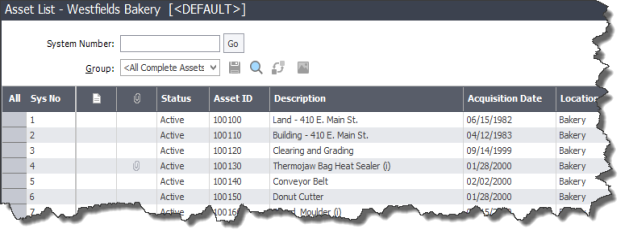
You can customize the view of your assets in the Asset List by:
- Removing or adding columns using the Customize Asset List window.
- Changing the order of the columns by dragging and dropping them.
- Sorting the assets temporarily by viewing any column in ascending or descending order.
- Freezing a column to keep it in view as you scroll through the columns.
- Changing the width of columns.
- Hiding fields by removing them from the Asset List view.
- Totaling one or more numeric columns in the Asset List footer.
Note: Customizations to Asset List can be saved in My Views.