
Selecting Assets
The Asset List allows you to select one or more assets in the view to perform asset functions, such as disposals
If you want to edit the attributes displayed in the list or view the asset in greater detail, you can switch to Asset Detail by double-clicking in a row or selecting the Asset Detail button.
- Do any one of the following:
- Click anywhere in the row that contains the asset you want to select.
- Use the Go field to find and select the asset.
The application highlights the asset you select.
- Do any one of the following:
- Select Edit/Select All from the menu bar.
- Select the box in the upper-left corner of the Asset List.
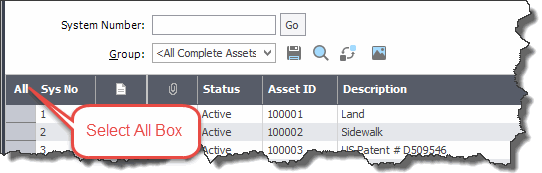
All assets in the current group are highlighted.
- Do any one of the following:
- Select Edit/Unselect All from the menu bar.
- Select the box in the upper-left corner of the Asset List.
The highlight bar is removed from all the assets in the current group.
- Select the first asset by selecting anywhere in the row that contains the asset.
- Press and hold the Shift key on the keyboard.
- Select the last asset by selecting anywhere in the row that contains the asset.
The first and last assets and all of the assets in between are highlighted.
- Select the first asset by selecting anywhere in the row that contains the asset.
- Press and hold the CTRL key on the keyboard.
- Select the next asset by selecting anywhere in the row that contains the asset.
Each asset that you select is highlighted.