
Navigating the Application
How do I navigate the application?
You navigate the application using the navigation pane.
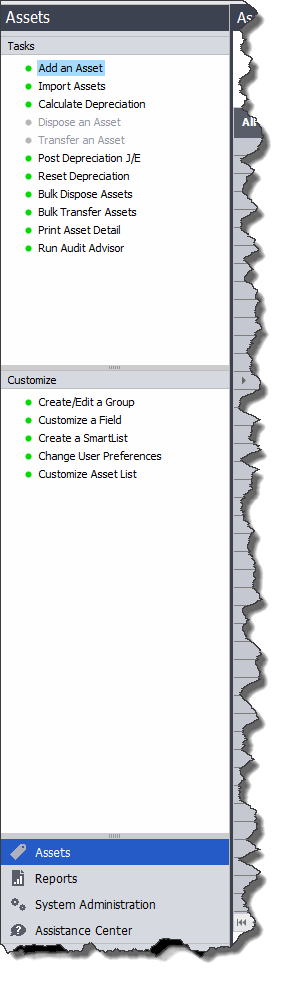
To navigate to different areas of the application, select the buttons at the bottom of the navigation pane.
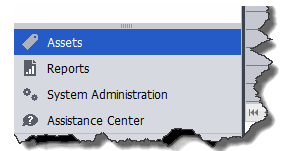
For example, select the Assets button to view the Asset List.
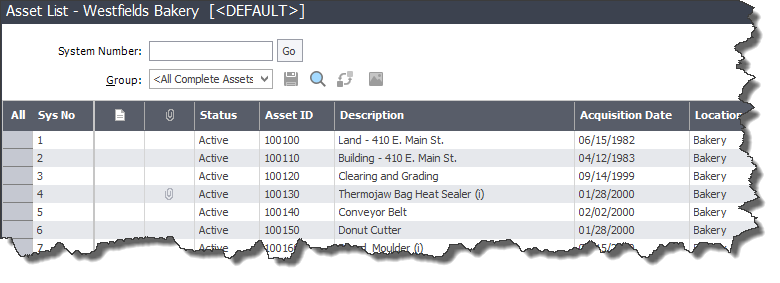
The Asset List displays the current group of assets in the working area of the application.
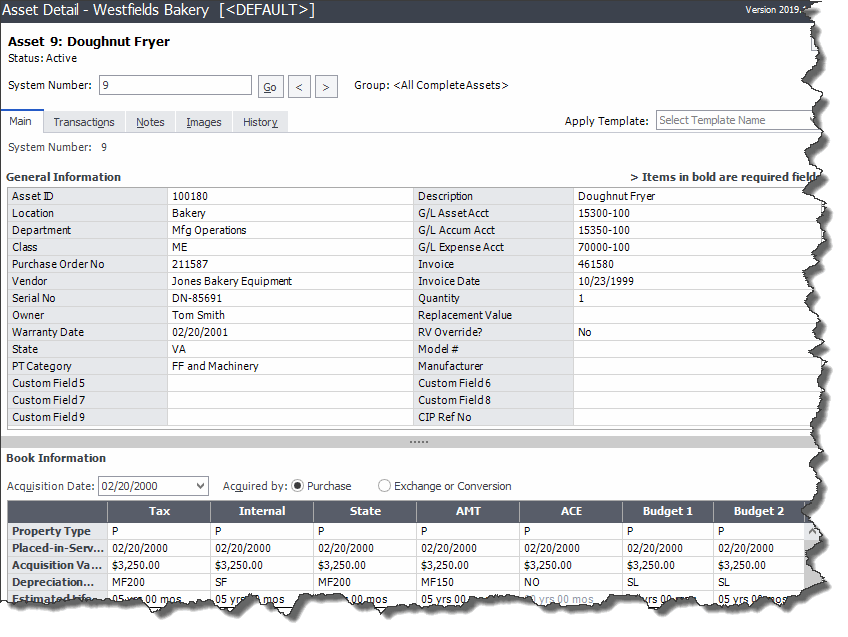
To view information about a single asset, double-click the asset, or select the Asset Detail button at the bottom of the Asset List. The asset information appears in Asset Detail.
To perform a task, such as adding an asset, disposing an asset, or calculating depreciation, use the task list on the navigation pane.
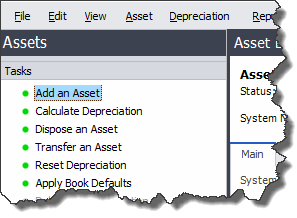
The list of tasks changes depending on what is currently displayed in the working area.
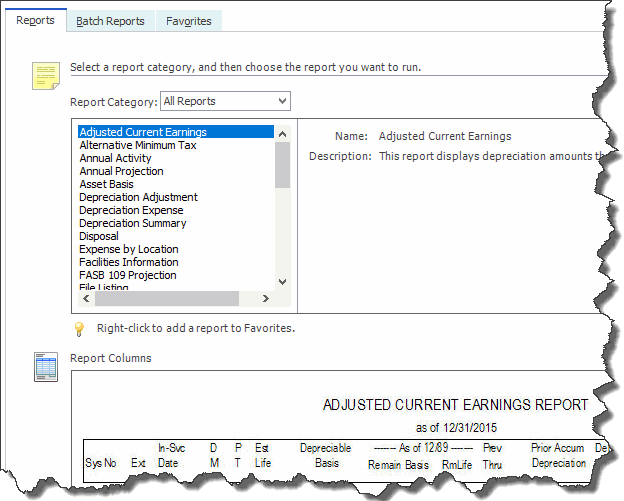
In the Reports working area, you can run the standard reports, create batch reports, and create a list of favorite reports.
Select the System Administration button to view the System Administration working area.
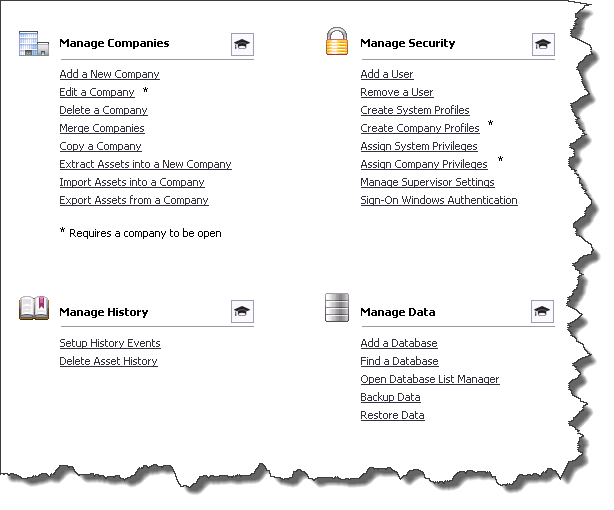
In the System Administration working area, you can perform tasks that relate to the entire system, such as managing your databases
Select the Assistance Center button to view the Assistance Center working area.
In the Assistance Center, you can find answers to frequently asked questions and links for contacting customer support, sales, and training.