
Using the Group Tree
The group tree in the report viewer displays the sort levels of a report. You can use the group tree to view the sort levels and to quickly move from one section of the report to another.
To view the group tree, select the Group Tree button  on the report viewer.
Note: The system displays the group tree only if you have selected to subtotal the sort criteria for the group of assets on which you are reporting. You can select whether to subtotal the sort criteria when you define the group in the Group Manager. You can also select to subtotal the sort criteria on the Format Report tab of the Report Definition window. If you have not selected to subtotal the sort criteria for the group of assets on which you are reporting, the system displays a blank navigation area when you select the Group Tree button.
The image below shows the group tree for a report that is sorted first by the Location field, and then by the Department field.
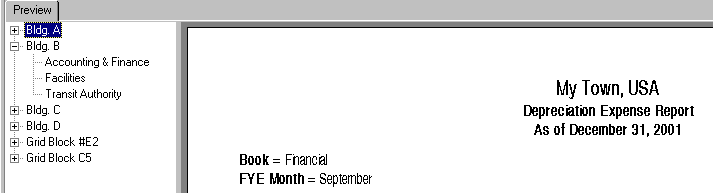
You can expand the entries for the primary sort field (Location) to display the entries for the secondary sort field (Department). In the image above, the Building B location is expanded to show the three departments for that location. Select the plus sign (+) to expand a sort field, and select the minus sign (-) to contract a sort field.
You can also quickly move to a section of the report by selecting a sort level on the group tree. For example, when you select Building C in the group tree, the system displays the information about Building C in the report window.