
Creating a Template
How do I create a template?
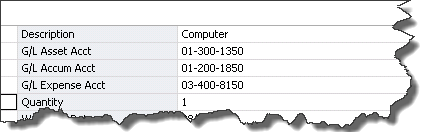
The Asset Templates feature lets you create predefined assets, which you can then copy into individual assets. You should create an asset specifically made to be saved as a template. This is because you probably do not want to complete certain fields, such as the Asset ID field. If you completed this field for the template, you would have to change it every time you applied the template to an asset.
You can create an asset for the purpose of saving it as a template.
To create a template
- Enter a new asset that you want to save as a template. For more information, see Entering New Assets. (You can also use an existing asset to create a template.)
- Do one of the following after you have completed all asset fields you want to include in the template:
- Select Asset > Save as Template.
- Select the Save as a Template task on the navigation pane.
The system displays the Save As Template window.
- Enter a name for the template you are creating, and then select OK. The system returns to the asset tabs and remains in the new asset mode.
Note: In addition to creating an asset template, you can save your current entries as a new asset at the same time. To save the current entries as a new asset, select the Save Asset button. If you do not want to save the current entries as a new asset, select the Asset List button. The system displays a message asking if you want to create this asset. Select the No button. The system does not save the template settings as a new asset.