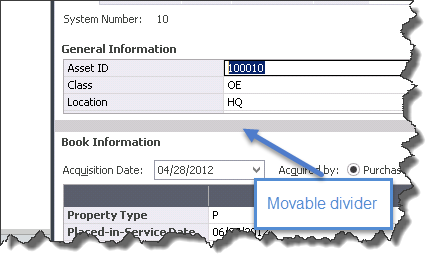
Main Tab of Asset Detail
The Main tab of Asset Detail contains two categories of fields:
General Information Fields
Fields on the main system window that contain general business information about your assets; for example, G/L Asset Account and Purchase Order. This information does not affect the depreciation calculations, but is useful for asset management. You can customize these fields and also define and use
Book Information Fields
Data entry fields that accept or display depreciation data specific to each book displayed in the column headings. All of these fields affect the depreciation calculations. Examples include the Depreciation Method field and the Acquisition Value field.
If new books have been added and saved from the New or Edit Company dialog, the columns for the new books will display on the Book Information grid. If feasible, the grid will automatically adjust to fit all books in the current window size. Otherwise, the grid will allow for scrolling from left to right to see all books.
The book column width can be adjusted by hovering over the divider line between two book headings until seeing the arrow icon  .
.
Double-click the arrow to automatically adjust the width to fit the book’s current data.
Drag the arrow to manually adjust the width of the column. The width can be adjusted down to 1 character wide.
Select the Resize icon  to auto-resize column widths proportionally.
When new books are added, existing assets will display with blank data in new books until data is entered, imported, copied, or applied via Apply Book Defaults.
Closed books will only display in Asset Detail if the Show Closed Books option has been checked on the New/Edit Company dialog. When a book is closed and the Show Closed Books option has not been checked, the closed book will not display in Asset Detail. When a book is closed and the Show Closed Books option has been checked, the closed book will display in a disabled state on Asset Detail.
Tip: You can move the gray divider between the General Information and Book Information fields to display more or fewer fields in each section.